2b1. Navigating the interface
Press Ctrl to lock the camera and unlock the cursor (pressing again will do the opposite). With the cursor unlocked, you can click/hover on various elements on screen. This is how you can enter certain menus and view details of buffs/debuffs on both player characters and enemies.
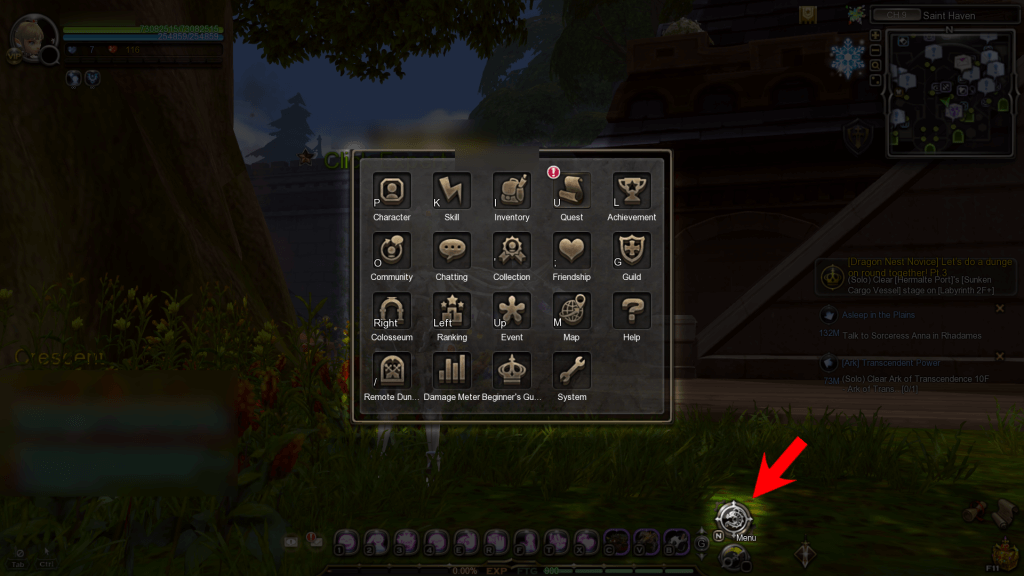
A lot of game features can be accessed through the Main Menu, by clicking on this icon or press N.
Pressing H will bring up Keyboard Help, which lists the default keys for a good number of features. You can rebind these as well as additional features not listed in Keyboard Help by pressing Esc and choosing Controls Settings. Note that not every key in the game can be rebound.
Rearranging skills and items on the hotbar/quickbar
To rearrange your skill hotbar, click to drag a skill icon to the hotbar slot you want and click again to release. You can remove a skill from its slot by dragging and releasing it anywhere outside the hotbar. Items from your inventory (like potions) can be registered for quick use in the same way.
When not in combat mode, you can use gestures and mounts (and certain secondary skills) from the hotbar. They can be found in the Gesture and Mount/Minion tabs in the inventory, and can be registered on the hotbar in the same way.
Special Storage
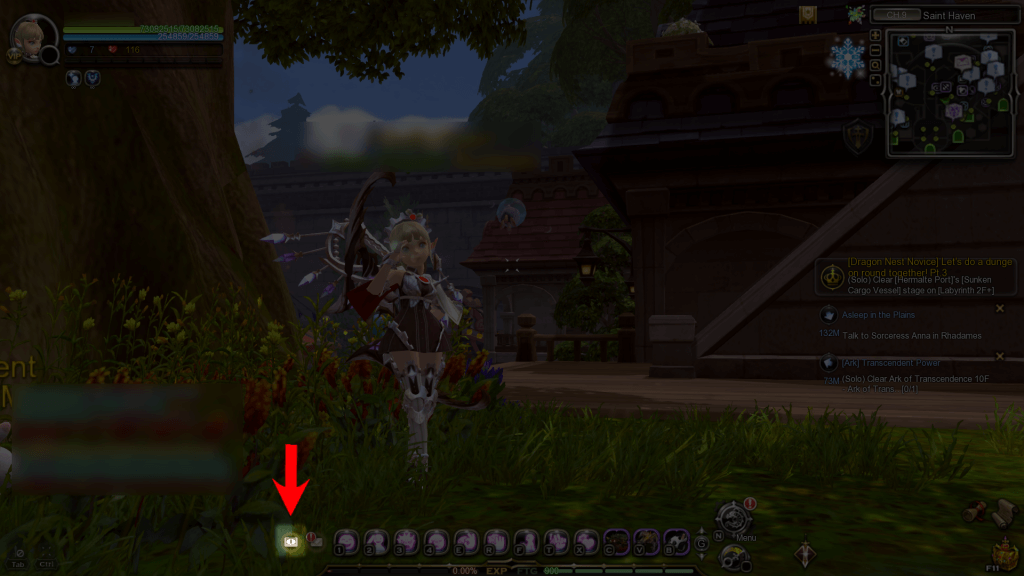
This is a feature that can only be accessed with this tiny button, in Towns.
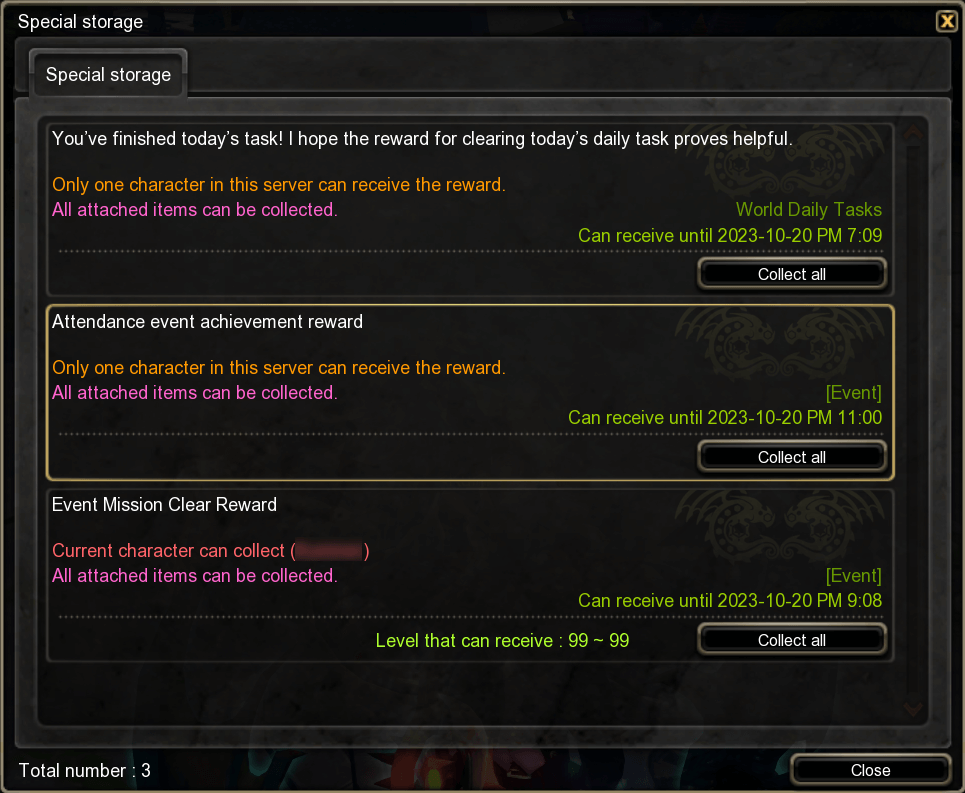
The Special Storage is where login, daily and weekly task rewards will be sent to. Tasks can be completed by any character on your account, and any character can collect task rewards from Special Item Storage. Sometimes character-specific event/mission box rewards are also sent here instead of the mailbox.