2b7. The chat
Text chat between players and announcements by system can be seen on the bottom left of the screen.

To bring it info focus, press Enter or click in the general area of the chat display. When in focus, you can scroll the chat log and input messages (Enter to send). All messages have a character limit of 60, except World Chat which has a limit of 40.

Chat types
Chat messages are separated into types based on visibility, denoted by color and tabs. You can change the type of your message by switching to the corresponding tab, or by putting /(code without parathensis) at the beginning of your message. (For example, /p hello will send “hello” to party chat.)

| Chat type | Color | Description | Code |
| General | White | Visible to players nearby in the same channel or instanced field. Also appears as chat bubble. | /1 /s |
| Party | Blue | Visible to all party members wherever they are in Zone or Field. Requires being in a party to use. Also appears as chat bubble. | /2 /p |
| Guild | Green | Visible to all guild members wherever they are in the world. Requires being in a guild to use. Does not appear as chat bubble. | /3 /g |
| Whisper/PM | Pink | Directly and privately message a single player. Does not appear as chat bubble. /r to quickly reply to the last PM you received. | /4 /w [IGN] /r |
| Channel | Grey | Visible to all Channel members. Channels are consistent chatrooms that do not require parties or guilds to join, and can be locked with a password. Does not appear as chat bubble. | /5 /c |
| Raid leader | Red | Can only be used by the leader of a raid party. These messages will come with a sound effect and appear in the middle of the screen. | /y |
| Zone | Orange | Visible to all players in the same Town/Zone, but not visible to those in Fields. Requires using a Messenger Yellow Bird to send, but somewhat obsolete now. Cannot be toggled off. | |
| World | Cyan | Visible to all players no matter where they are in the world. Requires using a Messenger Blue Bird to send. Cannot be toggled off. | |
| World (VIP) | Red | Visible to all players no matter where they are in the world, and appears for a short period of time above the chat display in larger font. Requires using a Messenger Red Bird to send. Cannot be toggled off. | |
| System | Yellow | Announcements by the system about events in the world, in the content you’re running, or the functions you’re using. The latter two are only visible to you. |
Customizing chat display
You can customize what types of chat are visible in each tab by pressing the spanner button when a tab is active. Zone and World chat can’t be turned off in any tab, whether we like it or not. The Background option adds a background to the chat area whether it’s in focus or not.
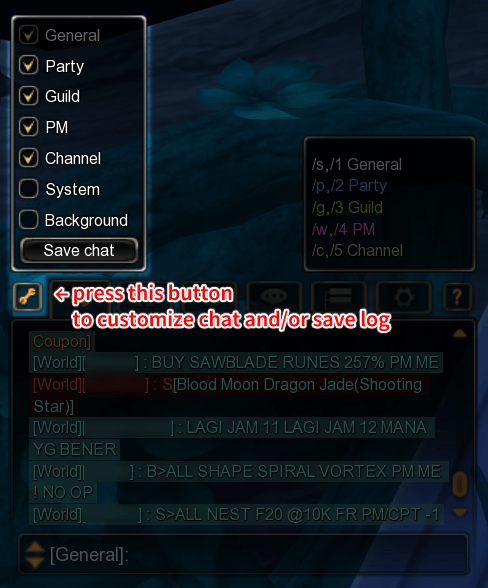
Remember to press the Save button to save these settings.
Additionally, pressing that same Save button will save a TXT log of the active tab to [USER]/Documents/Dragon Nest/Log. Yes the button does both at once, no I do not know why.